Convert Markdown to HTML: The Complete Developer Guide
Learn how to convert Markdown to HTML with examples, best practices, live preview tools, SEO tips, and HTML-to-Markdown workflows. Complete developer guide.
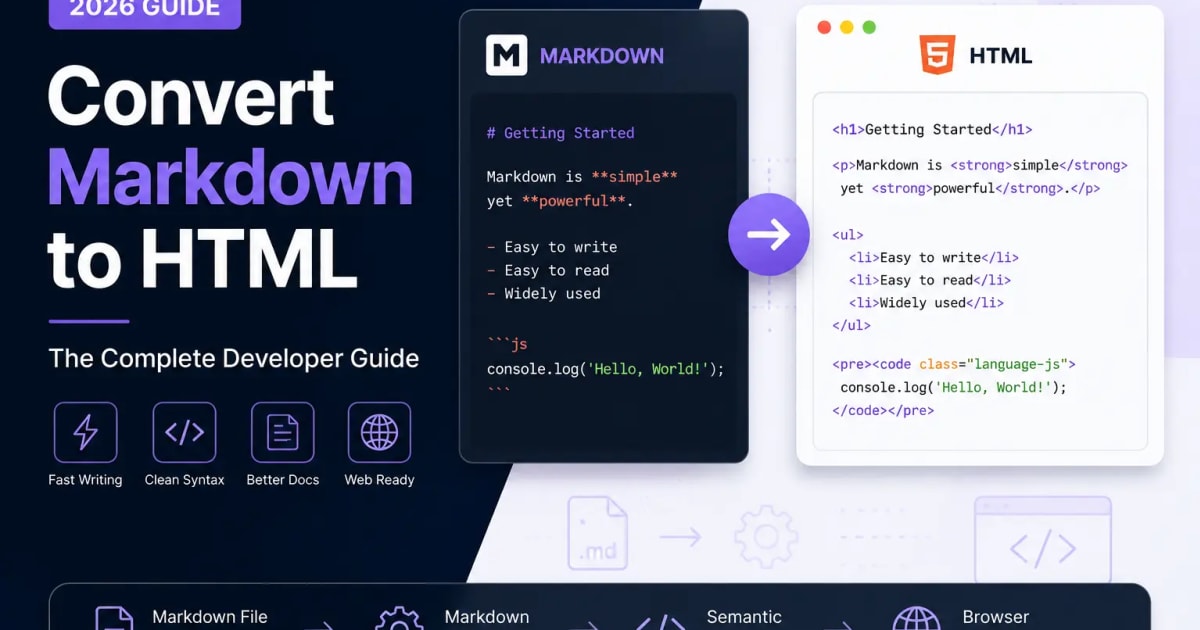
Markdown is one of the most practical formats for writing developer documentation, blog posts, README files, tutorials, and knowledge base content. It keeps source files clean and readable while still allowing that content to be converted into structured HTML for the web.
If you publish content online, learning how to convert Markdown to HTML helps you write faster, review changes more easily, and produce semantic markup without manually typing every HTML tag.
In this guide, you will learn how Markdown conversion works, how common Markdown syntax maps to HTML, what mistakes to avoid, and how to use a live preview workflow before publishing.
What Is Markdown?
Markdown is a lightweight markup language designed for plain-text writing. Instead of writing full HTML by hand, you use simple characters to describe headings, lists, links, images, emphasis, code blocks, tables, and other common content elements.
For example, this Markdown:
# Getting Started

This is **bold** text.

- Item 1
- Item 2
converts to this HTML:
<h1>Getting Started</h1>
<p>This is <strong>bold</strong> text.</p>
<ul>
  <li>Item 1</li>
  <li>Item 2</li>
</ul>
The Markdown source stays easy to scan, while the generated HTML gives browsers the structure they need to render the page correctly.
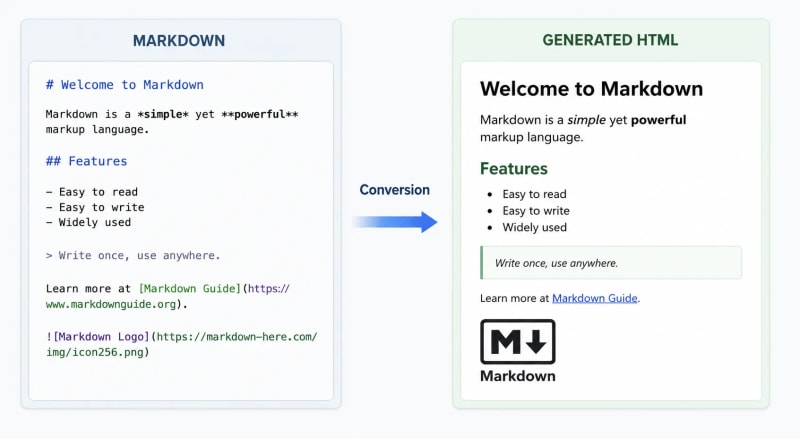
This comparison shows why Markdown is popular with developers and documentation teams: the writing format is compact, but the final output can still become clean HTML.
Why Developers Prefer Markdown
Developers use Markdown because it fits naturally into code-based workflows. Markdown files are plain text, easy to review in Git, and supported by documentation platforms, static site generators, CMS tools, and modern frameworks.
Markdown is especially useful when you need:
- Faster writing without repetitive HTML tags
- Cleaner source files for long-form content
- Easier collaboration through version control
- Portable documentation that can move between tools
- Consistent formatting across technical content
Markdown is not a replacement for HTML in every situation. Instead, it is an authoring format that makes writing and maintaining content easier before that content is converted into HTML.
Why Convert Markdown to HTML?
Browsers render HTML, not raw Markdown. When you publish a Markdown document on a website, documentation portal, or blog, a parser converts the Markdown syntax into semantic HTML before the page is displayed.
For example, a Markdown heading:
# Introductionbecomes:
<h1>Introduction</h1>A Markdown list:
- HTML
- CSS
- JavaScript
becomes:
<ul>
  <li>HTML</li>
  <li>CSS</li>
  <li>JavaScript</li>
</ul>
This workflow lets writers and developers focus on content while the converter handles the HTML structure.
Common Markdown to HTML Use Cases
Markdown is converted to HTML in many everyday publishing workflows, including:
- Technical documentation
- Software README files
- Developer blogs
- API documentation
- Knowledge bases
- Static websites
- Internal documentation portals
- Educational tutorials
- CMS-managed articles
In many modern projects, the conversion happens automatically during the build process. In other cases, a Markdown to HTML Converter can generate HTML instantly in the browser.
How Markdown Conversion Works
A Markdown parser reads the source file, identifies Markdown syntax, and transforms each element into an HTML equivalent. Many parsers also build an intermediate representation, such as an abstract syntax tree, before generating the final HTML.
Markdown file (.md)
  -> Markdown parser
  -> Parsed document structure
  -> Semantic HTML
  -> Browser rendering
For example, this Markdown includes a heading, paragraph, and fenced code block:
## Installation

Install the package using npm.

```bash
npm install package-name
```
The generated HTML may look like this:
<h2>Installation</h2>
<p>Install the package using npm.</p>
<pre><code class="language-bash">npm install package-name</code></pre>
The resulting HTML can then be styled with CSS and enhanced with JavaScript like any other web page.
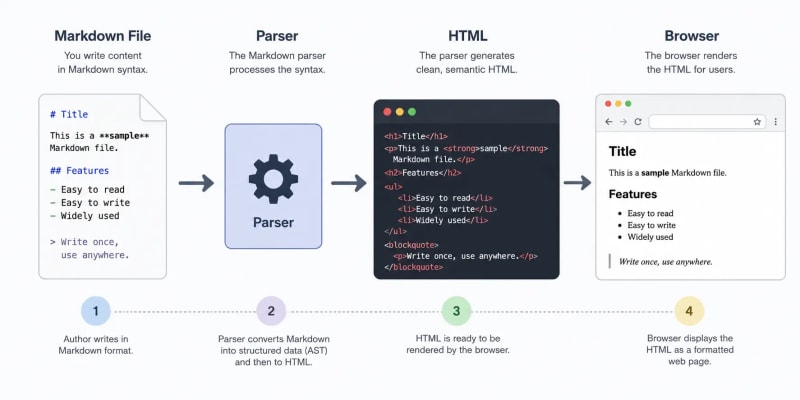
This rendering pipeline is the reason Markdown works so well in developer documentation: writers maintain readable source files, while websites receive structured HTML.
Markdown vs HTML
Markdown and HTML serve different purposes. Markdown is optimized for writing and editing. HTML is optimized for browser rendering and precise document structure.
| Feature | Markdown | HTML |
|---|---|---|
| Ease of writing | Excellent | Moderate |
| Source readability | Excellent | Moderate |
| Browser support | Requires conversion | Native |
| Learning curve | Easy | Moderate |
| Custom styling | Limited | Extensive |
| Documentation workflows | Excellent | Excellent |
| Complex layouts | Limited | Excellent |
| Version control | Excellent | Good |
Use Markdown when you want a readable authoring format. Use HTML when you need full control over layout, attributes, styling hooks, or custom components.
Practical Markdown Examples
The best way to understand Markdown syntax is to compare common Markdown patterns with their generated HTML output.
Headings
Markdown:
# Heading One

## Heading Two

### Heading Three
HTML:
<h1>Heading One</h1>
<h2>Heading Two</h2>
<h3>Heading Three</h3>
Use one H1 for the page title, then use H2 and H3 headings to organize the article body.
Bold and Italic Text
Markdown:
**Bold text**

*Italic text*

***Bold and italic text***
HTML:
<strong>Bold text</strong>
<em>Italic text</em>
<strong><em>Bold and italic text</em></strong>
Use emphasis when it helps readers understand the content. Avoid using bold text as a substitute for proper headings.
Lists
Markdown:
- HTML
- CSS
- JavaScript
HTML:
<ul>
  <li>HTML</li>
  <li>CSS</li>
  <li>JavaScript</li>
</ul>
Markdown also supports ordered lists:
1. Write Markdown
2. Preview the output
3. Convert it to HTML
Links
Markdown:
[ToolVize Markdown to HTML Converter](/tools/markdown-to-html-converter)HTML:
<a href="/tools/markdown-to-html-converter">ToolVize Markdown to HTML Converter</a>Descriptive link text is better for readers, accessibility, and search engines than vague phrases like "click here."
Images
Markdown:
HTML:
<img src="markdown-preview.png" alt="Markdown editor with live HTML preview">Good alt text should describe the image clearly. It should not be stuffed with keywords or left as a generic filename.
Code Blocks
Use fenced code blocks with a language label so syntax highlighters can display code correctly.
Markdown:
```javascript
const tool = "ToolVize";
console.log(`Convert Markdown with ${tool}`);
```
HTML:
<pre><code class="language-javascript">const tool = "ToolVize";
console.log(`Convert Markdown with ${tool}`);</code></pre>
When you need to show a fenced code block inside a Markdown example, wrap the outer example in four backticks.
Blockquotes
Markdown:
> Markdown keeps documentation simple, readable, and easy to maintain.HTML:
<blockquote>
  <p>Markdown keeps documentation simple, readable, and easy to maintain.</p>
</blockquote>
Blockquotes are useful for notes, quoted material, or callouts, but they should not be overused for ordinary paragraphs.
Tables
Markdown:
| Tool | Language |
| --- | --- |
| React | JavaScript |
| Laravel | PHP |
HTML:
<table>
  <thead>
    <tr>
      <th>Tool</th>
      <th>Language</th>
    </tr>
  </thead>
  <tbody>
    <tr>
      <td>React</td>
      <td>JavaScript</td>
    </tr>
    <tr>
      <td>Laravel</td>
      <td>PHP</td>
    </tr>
  </tbody>
</table>
Markdown tables are helpful for compact comparisons, but large datasets are usually better handled with dedicated table components or downloadable files.
Why Use a Markdown Live Preview?
A markdown live preview shows the rendered output as you type. This is useful because Markdown mistakes are often small: one missing backtick, one broken table divider, or one incorrect heading level can change how the page renders.
A live preview helps you catch:
- Incorrect heading hierarchy
- Unclosed code fences
- Broken tables
- Nested list formatting issues
- Invalid links
- Missing image alt text
- Blockquote formatting problems
If you want to check content quickly, the ToolVize Markdown to HTML Converter provides a markdown preview online while generating HTML output.
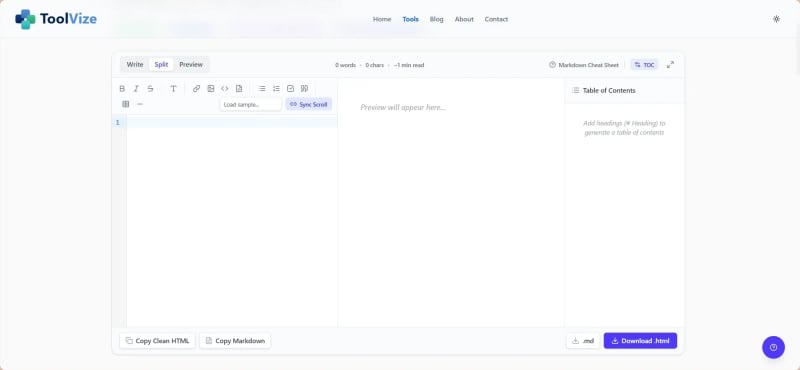
The converter is useful for testing Markdown syntax, reviewing generated HTML, and catching formatting issues before content goes into a CMS or code repository.
Client-Side Conversion and Privacy
Privacy matters when your Markdown includes internal documentation, unpublished articles, API notes, or project specifications. Some online converters process content on remote servers, which may not be appropriate for confidential material.
A browser-based Markdown converter can process content locally in your browser. This approach has practical benefits:
- Sensitive content stays on your device
- Conversion feels fast because there is no server round trip
- Large documents are easier to preview interactively
- Drafts can be checked without account setup
- Teams can reduce unnecessary content uploads
For internal or unpublished work, client-side conversion is often the most comfortable workflow.
Converting HTML Back to Markdown
Markdown to HTML is the most common direction, but the reverse workflow is also valuable. An HTML to Markdown Converter can turn existing HTML into cleaner Markdown that is easier to edit, review, and maintain.
This is useful when you are migrating old blog posts, cleaning CMS exports, moving documentation into Git, or simplifying copied content from a rich text editor.
HTML:
<h2>Installation</h2>
<p>Install the package using npm.</p>
<ul>
  <li>Download the project</li>
  <li>Install dependencies</li>
  <li>Start the development server</li>
</ul>
Markdown:
## Installation

Install the package using npm.

- Download the project
- Install dependencies
- Start the development server
The Markdown version is easier to read in source control and simpler to edit in plain-text tools.
When to Convert HTML to Markdown
HTML to Markdown conversion is useful when you need to:
- Migrate legacy website content
- Import blog posts into a static site generator
- Create or update GitHub README files
- Clean copied content from rich text editors
- Prepare documentation for version control
- Standardize content before editing
The goal is not to remove HTML everywhere. The goal is to make content easier to maintain when Markdown is the better editing format.
SEO Best Practices for Markdown Content
Markdown is only part of the publishing workflow. SEO depends on the quality of the content and the structure of the generated HTML.
Use a Clear Heading Structure
Use one H1 for the page title. Then organize main sections with H2 headings and supporting subsections with H3 headings.
H1 Page title
  H2 Main section
    H3 Supporting subsection
    H3 Supporting subsection
  H2 Main section
Avoid skipping heading levels when possible. A clean structure helps readers, search engines, screen readers, and AI search systems understand the page.
Write Descriptive Alt Text
Every image should have meaningful alt text.
Less useful:
Better:
Alt text should describe the image's purpose in the article. Keep it natural and concise.
Use Descriptive Links
Generic anchor text gives readers very little context.
Less useful:
[Click here](/tools/markdown-to-html-converter)Better:
[Markdown to HTML Converter](/tools/markdown-to-html-converter)Descriptive internal links help users continue their workflow and help search engines understand how pages relate to each other.
Keep URLs Clean
Readable URLs are easier to share and understand.
Good:
/blog/convert-markdown-to-htmlLess effective:
/blog/article-27892For this article, the recommended slug is convert-markdown-to-html.
Preserve Semantic HTML
Well-formed Markdown produces semantic HTML elements such as:
<h1>for the main page title<h2>and<h3>for section headings<p>for paragraphs<ul>and<ol>for lists<blockquote>for quoted content<code>for inline code<pre>for code blocks
Semantic HTML improves accessibility, content parsing, and search visibility.
Accessibility Best Practices
Accessible Markdown is usually the result of clear writing and consistent structure. Keep these practices in mind:
- Use one H1 per page.
- Keep heading levels in order.
- Write meaningful image alt text.
- Use descriptive link labels.
- Format code blocks with language labels.
- Keep paragraphs concise.
- Avoid using tables for page layout.
These habits make documentation easier to navigate for everyone, including users who rely on assistive technologies.
Performance Benefits of Markdown
Markdown files are lightweight because they are plain text. They avoid the hidden formatting that often comes from word processors and rich text editors.
| Feature | Markdown | Rich text editors |
|---|---|---|
| File size | Very small | Larger |
| Version control | Excellent | Limited |
| Source readability | Excellent | Moderate |
| Hidden formatting | None | Often present |
| Processing speed | Fast | Moderate |
Cleaner source files usually lead to cleaner generated HTML, easier reviews, and simpler long-term maintenance.
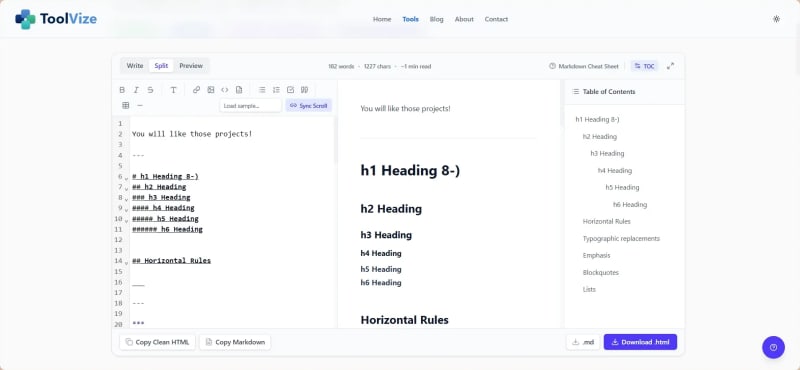
The editor view highlights how Markdown keeps the writing process focused while still supporting preview and conversion workflows.
Common Mistakes to Avoid
Most Markdown issues are easy to fix once you know what to look for.
Skipping Heading Levels
Incorrect:
# Main Title

### Section
Correct:
# Main Title

## Section
Heading levels should describe the document structure, not just the visual size of the text.
Forgetting to Close Code Blocks
Incorrect:
```javascript
console.log("Hello");
Correct:
```javascript
console.log("Hello");
```
Unclosed code fences can cause the rest of the article to render as code, which is one of the most common Markdown publishing errors.
Using Generic Image Alt Text
Incorrect:
Correct:
The corrected version gives readers and assistive technologies useful context.
Writing Vague Links
Incorrect:
[Learn more](/tools/markdown-to-html-converter)Correct:
[HTML to Markdown Converter](/tools/markdown-to-html-converter)Clear anchor text helps readers understand what will happen before they click.
Frequently Asked Questions
What is the difference between Markdown and HTML?
Markdown is a plain-text writing syntax. HTML is the markup language browsers use to display web pages. Markdown usually needs to be converted into HTML before it can be published on the web.
Why convert Markdown to HTML?
You convert Markdown to HTML because browsers render HTML. Conversion lets you write in a clean, readable format while publishing structured content that browsers, search engines, and assistive technologies can understand.
Can I convert Markdown to HTML online for free?
Yes. You can use the ToolVize Markdown to HTML Converter to convert Markdown into HTML and preview the result online for free.
Does Markdown support HTML?
Many Markdown parsers allow inline HTML, but support depends on the platform and security settings. For portable documentation, use standard Markdown syntax whenever possible.
Can I convert HTML back to Markdown?
Yes. If you have existing HTML content, the ToolVize HTML to Markdown Converter can help turn it into cleaner Markdown for editing and version control.
Is Markdown good for SEO?
Markdown can be good for SEO when it produces semantic HTML, uses a clear heading structure, includes descriptive links, and provides useful alt text for images.
Is my Markdown data uploaded to a server?
ToolVize's Markdown converter is designed for browser-based conversion whenever possible, which helps keep your content private and reduces unnecessary server uploads.
Continue Your Workflow with ToolVize
If you want a quick way to convert markdown to html, preview formatting, and copy clean output, try the ToolVize Markdown to HTML Converter.
You may also find these related tools useful:
References
The concepts and best practices discussed in this guide are based on the following official specifications and documentation:
- Markdown Documentation (John Gruber)
- GitHub Flavored Markdown (GFM) Specification
- CommonMark Specification
- MDN Web Docs – HTML
- HTML Living Standard (WHATWG)
- Markdown Guide
Final Thoughts
Markdown simplifies the writing process, while HTML powers presentation in the browser. By combining the two, developers can create documentation and blog content that is clean, maintainable, accessible, and search-friendly.
A strong Markdown workflow includes clear headings, descriptive links, meaningful image alt text, correctly fenced code blocks, and a reliable preview step before publishing.
For everyday writing, documentation, and technical publishing, Markdown remains one of the most efficient formats available. With a good markdown to html converter, you can move from readable source content to browser-ready HTML in seconds.
Written by ToolVize Team
ToolVize Team is a contributor to ToolVize, sharing insights on web performance, software utilities, and productivity workflows.