CSV to JSON: A Plain-English Guide for People Who Just Need It to Work
Got a CSV file and need JSON? Learn how conversion works, fix delimiter and data type issues, and convert free in your browser. No upload, no signup, no code.
Most developers, data analysts, and website owners eventually run into the same small but annoying problem.
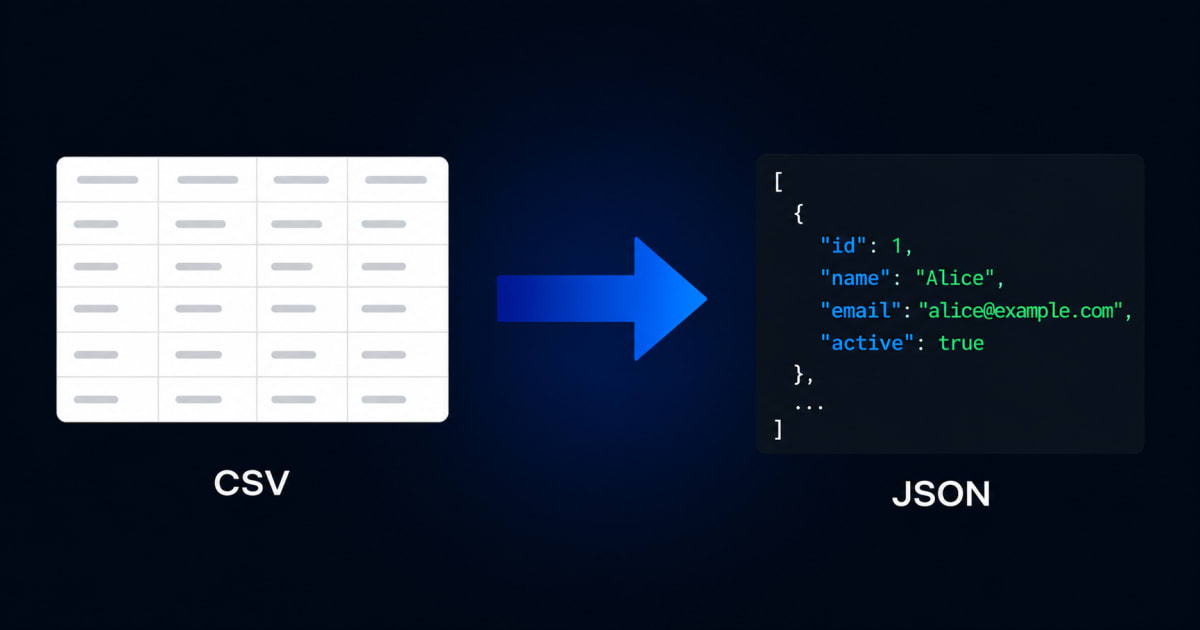
You export a list from Excel, Google Sheets, a CRM, an analytics dashboard, or a reporting tool, and the file comes out as .csv. Then your app, API, database, or frontend needs the same data in JSON. It sounds like a two-minute task, but one wrong delimiter, header, or data type can turn a simple conversion into messy output.
This guide explains CSV to JSON conversion in plain English. You will learn what CSV and JSON are, how the conversion works, what usually goes wrong, and how to convert CSV files into clean JSON without losing structure or corrupting values.
What is a CSV file?
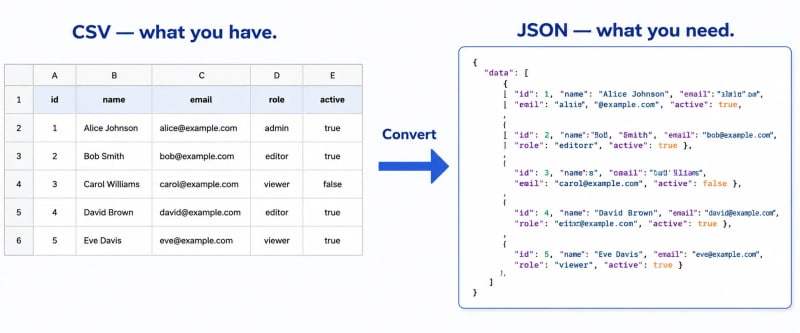
CSV stands for Comma-Separated Values. It is a plain text format used to store table-like data. Each line represents a row, and each value in that row is separated by a delimiter, usually a comma.
The first row often contains headers. These headers describe what each column means.
Here is a small CSV example opened in a text editor:
name,email,city,age
Sarah Jones,sarah@example.com,Manchester,34
Rahul Patel,rahul@example.com,Mumbai,28
Carlos Mendez,carlos@example.com,Buenos Aires,41
This file has four columns and three data rows. It is simple, readable, and easy to export from almost any spreadsheet or database tool.
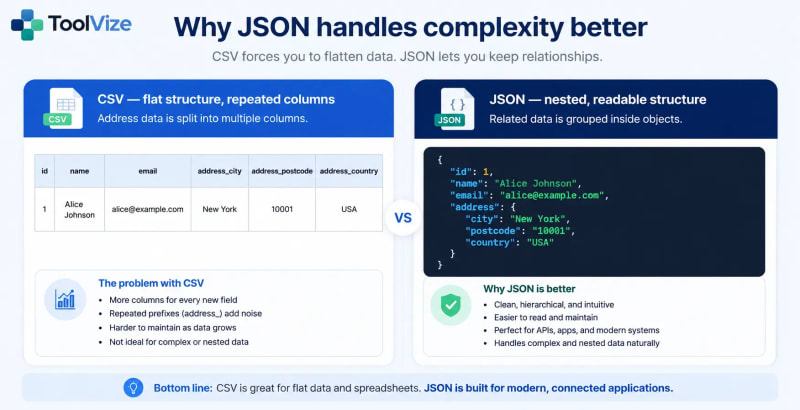
That simplicity is the reason CSV is still so common. It is also the reason CSV becomes limited when your data is not flat. A basic table works well for names, emails, prices, IDs, and dates. It becomes harder to manage when your data includes nested addresses, multiple user roles, product variants, order items, or other grouped information.
CSV is best for flat data. JSON is better when the data needs structure.
What is JSON?
JSON stands for JavaScript Object Notation. Although it started in the JavaScript world, JSON is now used across almost every modern programming language and platform. APIs, web apps, mobile apps, databases, and automation tools commonly use JSON to exchange structured data.
The same CSV data above can be represented as JSON like this:
[
  {
    "name": "Sarah Jones",
    "email": "sarah@example.com",
    "city": "Manchester",
    "age": 34
  },
  {
    "name": "Rahul Patel",
    "email": "rahul@example.com",
    "city": "Mumbai",
    "age": 28
  },
  {
    "name": "Carlos Mendez",
    "email": "carlos@example.com",
    "city": "Buenos Aires",
    "age": 41
  }
]
In this format, each CSV row becomes a JSON object. Each column header becomes a key, and each cell value becomes the value for that key.
Notice that age is written as a number, not as the string "34". This difference matters when you use the data in code. Numbers can be sorted, calculated, filtered, and compared correctly. Strings that only look like numbers can cause unexpected bugs.
JSON can also represent nested data clearly:
{
  "name": "Sarah Jones",
  "email": "sarah@example.com",
  "address": {
    "city": "Manchester",
    "postcode": "M1 1AA",
    "country": "UK"
  },
  "roles": ["editor", "reviewer"]
}
This is where JSON becomes more useful than CSV. Instead of forcing everything into columns, JSON lets related information stay grouped together.
Why convert CSV to JSON?
CSV is still one of the easiest ways to move data out of spreadsheets, CRMs, admin panels, analytics tools, and database reports. Many non-technical users are comfortable editing CSV files because they can open them in Excel or Google Sheets.
JSON, on the other hand, is the format most modern applications expect. REST APIs commonly accept and return JSON. Frontend frameworks like React and Vue often work with JSON data. NoSQL databases use document-style structures that look very close to JSON.
That creates a common workflow: data starts in CSV, but the application needs JSON.
Here are the most common situations where CSV to JSON conversion is useful.
Seeding a database from a spreadsheet. A client may send product data, user records, locations, or categories in a spreadsheet. Converting that CSV into JSON makes it easier to import the data into an application.
Testing a frontend before the backend is ready. If an API is not finished yet, you can convert sample CSV data into JSON and use it as mock data while building the UI.
Sending data to a REST API. Many APIs expect a JSON request body. If your product list, contact list, or order data is stored in CSV, conversion is the first step before sending it.
Moving data between old and new systems. Older systems often export CSV. Newer platforms often import JSON. Conversion helps bridge that gap during migrations.
Preparing data for charts and dashboards. JavaScript charting libraries and frontend dashboards usually work more comfortably with JSON arrays than with raw CSV text.
Managing configuration data. Some teams keep editable configuration data in spreadsheets, then convert it to JSON before using it inside an app or deployment process.
The conversion itself is not difficult. The real challenge is making sure the output keeps the correct headers, values, types, and structure.
How CSV to JSON conversion works
Whether you use an online CSV to JSON converter, a programming library, or your own script, the basic process is usually the same.
1. Read the header row
The first row of the CSV is usually treated as the list of JSON keys. In this example:
name,email,city,ageThe keys become name, email, city, and age.
2. Read each data row
Every row after the header becomes one JSON object. The converter matches each value to the header in the same column position.
For example, this row:
Sarah Jones,sarah@example.com,Manchester,34becomes:
{
  "name": "Sarah Jones",
  "email": "sarah@example.com",
  "city": "Manchester",
  "age": 34
}
3. Handle data types
CSV does not store true data types. Everything in a CSV file is text until a tool or script interprets it.
That means 34, true, and an empty cell all start as text. A good converter can detect common types and output them correctly as numbers, booleans, or null values.
For example:
{
  "age": 34,
  "active": true,
  "middle_name": null
}
This step is important, but it must be used carefully. If an ID is written as 00123, automatic type detection may convert it to 123, removing the leading zeros. For IDs, ZIP codes, product codes, and phone-like values, it is often safer to keep the value as a string.
4. Output the final JSON
Most converters wrap the objects inside a JSON array:
[
  { "name": "Sarah Jones", "age": 34 },
  { "name": "Rahul Patel", "age": 28 }
]
That format is easy to copy, download, send to an API, or use inside a project.
Common CSV to JSON problems and how to fix them
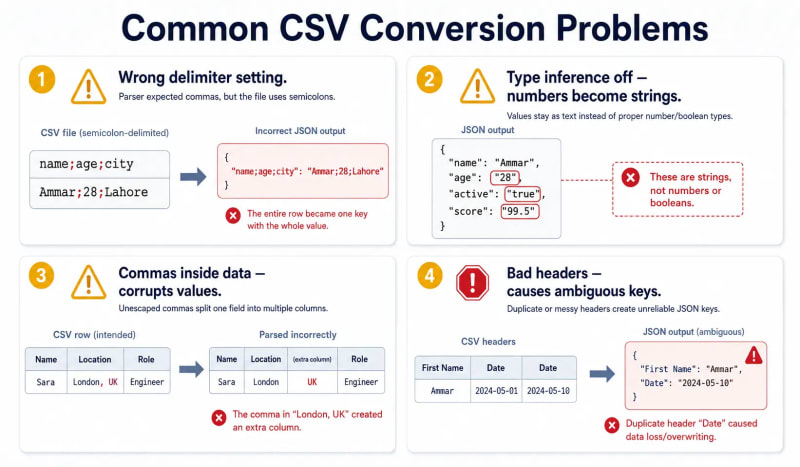
Clean CSV files convert easily. Real CSV files are not always clean. Here are the issues that cause most broken conversions.
Problem 1: The file does not use commas
Not every CSV file is actually comma-separated. Some files use semicolons, tabs, or pipe characters as delimiters.
This is common in files exported from systems where commas are used as decimal separators. In those cases, semicolons may be used to separate columns.
If your converted JSON shows one huge value instead of separate fields, the delimiter is probably wrong. Open the raw CSV in a plain text editor and check which character separates the values. Then choose the matching delimiter in your converter.
Problem 2: Numbers are coming out as strings
Sometimes the JSON looks correct at first glance, but numbers appear inside quotes:
{
  "age": "28"
}
That value is a string, not a number. Sorting, filtering, and calculations may behave incorrectly.
Enable type detection if you want values like 28, true, false, and empty cells to become proper JSON values. Turn it off for columns where formatting must be preserved, such as IDs with leading zeros.
Problem 3: Commas appear inside cell values
A product description, address, or note may contain a comma:
"Small, Medium, and Large sizes available"A proper CSV parser understands that the comma is part of the value because the field is wrapped in quotes. A simple split(",") approach does not understand this and can break the row into the wrong number of columns.
This is one of the biggest reasons to use a reliable converter or parser instead of manually splitting CSV text.
Problem 4: Line breaks appear inside cells
CSV fields can contain line breaks when the field is quoted. This often happens in notes, descriptions, comments, support exports, or product details.
A weak parser may treat the line break as a new row and produce broken JSON. A robust parser checks whether the quoted field is still open before deciding where the row ends.
Problem 5: Headers are messy or duplicated
Headers become JSON keys, so they should be clean and consistent.
A header like First Name is valid in JSON, but it is awkward to use in code because of the space. A cleaner key would be first_name or firstName.
Duplicate headers are more dangerous. If two columns are both named date, the converter must decide what to do. It may overwrite one value, rename one key, or produce confusing output.
Before converting important data, quickly review the header row. Make sure every column has a unique, clear name.
Flat JSON vs nested JSON
Most CSV to JSON tools create flat JSON by default. That means each column becomes one key at the top level of the object.
Flat JSON output
Input CSV:
user_name,address_city,address_postcode,address_country
Sarah Jones,Manchester,M1 1AA,UK
Output JSON:
{
  "user_name": "Sarah Jones",
  "address_city": "Manchester",
  "address_postcode": "M1 1AA",
  "address_country": "UK"
}
Flat JSON is simple and works well for basic data.
Nested JSON is better when the target app, API, or database expects grouped information.
Nested JSON output
If the CSV headers use dot notation, a converter that supports nested output can create a hierarchy automatically.
For example, these headers:
user_name,address.city,address.postcode,address.countrycan become:
{
  "user_name": "Sarah Jones",
  "address": {
    "city": "Manchester",
    "postcode": "M1 1AA",
    "country": "UK"
  }
}
This is useful when preparing data for APIs, document databases, or structured configuration files.
Not every converter supports nested output. The ToolVize CSV to JSON Converter supports dot notation, so you can rename columns in the mapping table and generate nested JSON without writing custom code.
Array of objects, array of arrays, or NDJSON?
CSV data can be converted into different JSON structures. The best choice depends on where the output will be used.
Array of objects
This is the most common JSON format for converted CSV data. Each row becomes an object with named keys.
[
  { "name": "Sarah", "city": "Manchester" },
  { "name": "Rahul", "city": "Mumbai" }
]
Use this format for APIs, frontend apps, mock data, database seeding, and most general use cases.
Array of arrays
In this format, the header row and each data row become arrays.
[
  ["name", "city"],
  ["Sarah", "Manchester"],
  ["Rahul", "Mumbai"]
]
Use this when you want a compact spreadsheet-like structure and are comfortable referencing values by position instead of by key.
NDJSON
NDJSON stands for Newline-Delimited JSON. It stores one JSON object per line without wrapping everything in a single array.
{"name": "Sarah", "city": "Manchester"}
{"name": "Rahul", "city": "Mumbai"}
NDJSON is useful for bulk imports, logs, streaming workflows, and large files that are easier to process one line at a time.
Pretty-printed JSON vs minified JSON
Pretty-printed JSON uses indentation and line breaks so humans can read it easily.
{
  "name": "Sarah Jones",
  "city": "Manchester"
}
Minified JSON removes extra spaces and line breaks.
{"name":"Sarah Jones","city":"Manchester"}The data is the same in both versions. The difference is readability and file size.
Use pretty-printed JSON when you are reviewing data, sharing examples, writing documentation, or debugging. Use minified JSON when you are sending data over a network, storing production payloads, or trying to reduce file size.
Fastest way to convert CSV to JSON
If you already have a CSV file and need clean JSON, follow this simple workflow:
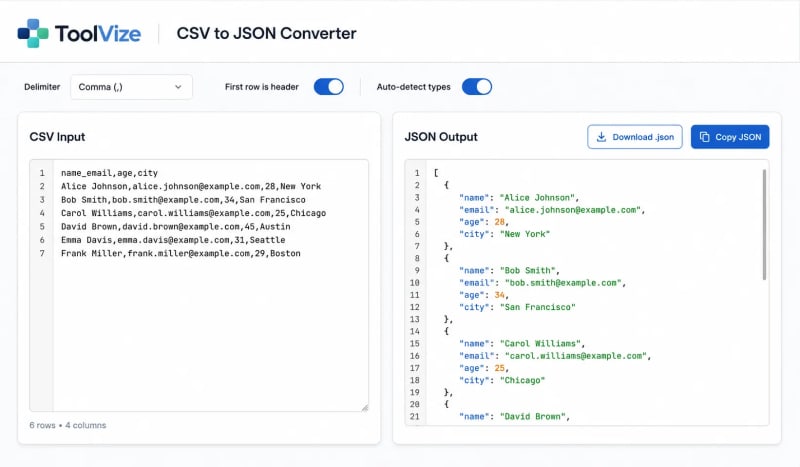
- Open the ToolVize CSV to JSON Converter
- Paste your CSV into the input panel, or upload your
.csvfile - Check the delimiter setting and change it if your file uses semicolons, tabs, or pipes
- Turn on “First row is header” if your first row contains column names
- Use type detection only when numbers, booleans, and null values should be converted automatically
- Review the column mapping, especially if you need cleaner key names or nested JSON
- Copy the output or download the
.jsonfile
For quick conversions, this is usually faster than writing a script from scratch. It also helps you catch common issues before using the JSON in your app, API, or database.
The ToolVize converter is designed to process your CSV locally in the browser, so your data is not uploaded to a server during conversion. This is especially helpful when working with business records, client exports, financial data, or other sensitive files.
When an online converter is not enough
An online converter is useful for one-time conversions, testing, prototypes, and small to medium files. It is not always the right solution.
If you convert the same file format every day, automate the workflow. A small script, scheduled job, or API integration will save time and reduce manual errors.
If your JSON needs grouping or aggregation, you may need custom logic. For example, converting multiple CSV rows with the same order ID into one order object with a nested items array usually requires a script.
If your files are extremely large, such as multiple gigabytes, a browser-based tool may not be the best option. A command-line tool, streaming parser, or backend data pipeline will usually be more reliable for that scale.
For everyday CSV exports, API testing, database imports, and quick data cleanup, a browser-based converter is still one of the fastest options.
CSV to JSON settings quick reference
| Setting | What it does | When to change it |
|---|---|---|
| Delimiter | Defines the character that separates values in the CSV | Change it if your file uses ;, tab, or ` |
| First row is header | Uses the first row as JSON key names | Turn it off only when your CSV has no header row |
| Auto-detect types | Converts values like 28, true, and empty cells into proper JSON types | Turn it off for IDs, codes, ZIP codes, and values with leading zeros |
| Skip empty rows | Ignores rows where all cells are blank | Keep it on for most spreadsheet exports |
| Pretty print | Adds indentation and line breaks | Use it when you want readable JSON |
| Output format | Lets you choose array of objects, array of arrays, or NDJSON | Use NDJSON for line-based imports, logs, or streaming workflows |
| Nested output | Builds nested objects from headers such as address.city | Use it when your API or database expects grouped data |
Frequently asked questions
Why did my converted JSON put everything into one field?
Your delimiter is probably wrong. Open the CSV in a plain text editor and check whether the values are separated by commas, semicolons, tabs, or another character. Then select the matching delimiter before converting again.
Why are numbers showing as strings in quotes?
CSV stores values as text. Enable type detection if you want values like 28, true, and empty cells to become JSON numbers, booleans, and null values. Keep type detection off for IDs or codes where formatting must stay exactly the same.
Can I convert large CSV files to JSON?
Yes, but the best method depends on file size and browser performance. Small and medium files are usually fine in a browser-based converter. Very large files, especially files with hundreds of thousands of rows or multiple gigabytes of data, are better handled with a command-line tool or a streaming script.
Is it safe to paste CSV data into an online converter?
It depends on how the converter works. If the tool uploads your CSV to a server, your data leaves your computer. The ToolVize CSV to JSON Converter processes the file locally in your browser, which is safer for sensitive or private data.
What is NDJSON used for?
NDJSON is useful when each JSON object should be processed separately. It works well for bulk imports, logs, streaming data, and large datasets that should be read line by line instead of loaded as one large array.
How do I create nested JSON from CSV?
Use dot notation in your column headers. For example, rename city to address.city and postcode to address.postcode. A converter that supports nested output can turn those columns into a nested address object.
Final thoughts
CSV is still one of the easiest ways to export and edit data. JSON is the format many modern apps, APIs, and databases prefer. Converting between them is a normal part of development, automation, reporting, and data migration work.
The key is not just converting the file. The key is checking the details: delimiter, headers, data types, empty rows, nested fields, and output format. When those settings are correct, the JSON becomes much easier to use.
If you need a quick conversion, try the ToolVize CSV to JSON Converter. It lets you paste or upload CSV, review the output, choose the right settings, and download clean JSON without creating an account.
You might also find these useful:
- Markdown to HTML Converter — write docs and see the rendered output instantly
- LinkedIn Text Formatter — format LinkedIn posts with clean spacing and readable structure
- Free Online Invoice Generator — create a professional PDF invoice in under a minute
Written by ToolVize Team
ToolVize Team is a contributor to ToolVize, sharing insights on web performance, software utilities, and productivity workflows.